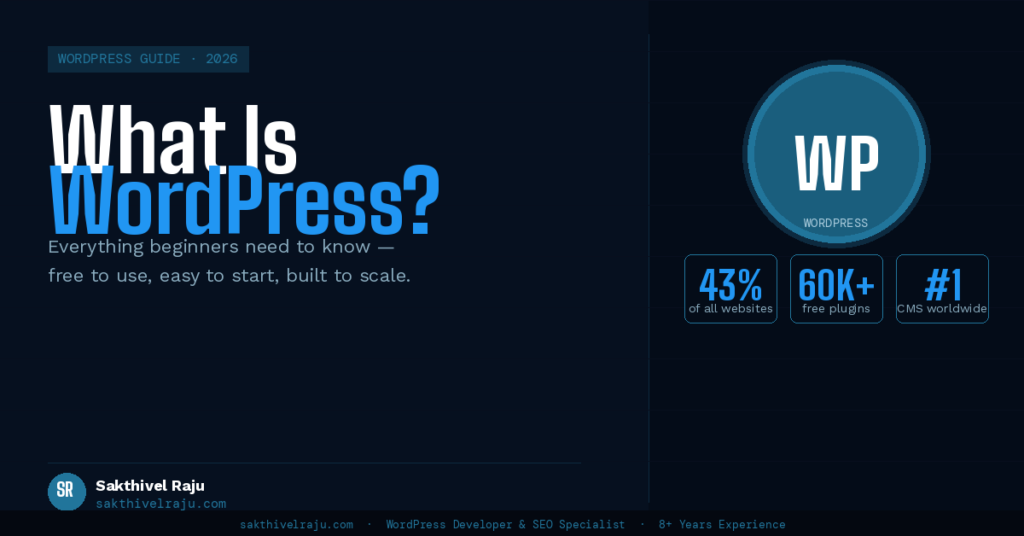
Everything you need to know about WordPress — what it is, whether it’s free, how it compares to Squarespace, and how to handle common tasks like clearing cache, editing your footer, and setting up redirects.
What Is WordPress?
WordPress is an open-source content management system (CMS) that powers websites. In simpler terms — it’s the software that runs behind your website, letting you create pages, write blog posts, install design themes, and add features through plugins, all without needing to write code.
Originally launched in 2003 as a blogging platform, WordPress has evolved into the world’s most widely used website platform — running everything from personal blogs to major news publications, ecommerce stores, and enterprise corporate websites.
- 43% of all websites on the internet run on WordPress.
- 60K+ free plugins available in the WordPress repository.
- #1 most used CMS in the world — by a wide margin.
There are two versions of WordPress you’ll encounter:
- WordPress.org — the free, open-source software you download and install on your own web hosting. This is what most people mean when they say “WordPress.” Full control, unlimited customization, self-hosted.
- WordPress.com — a hosted service run by Automattic (the company behind WordPress). Easier to start with but more limited on the free/cheap plans. Different from WordPress.org despite the similar name.
Which one is right for you? For any serious business website, choose WordPress.org (self-hosted). It gives you full control over your site, plugins, and design. WordPress.com is fine for personal blogs but limits what you can do on lower-tier plans.
Is WordPress Free? Is WordPress It Free to Use?
The short answer: WordPress itself is free — but running a WordPress website has associated costs.
Here’s the honest breakdown of what you’ll pay:
- WordPress software: Free. Always. Open-source and free to download and use.
- Web hosting: $3–$30/month depending on the provider and plan. You need hosting to put your site on the internet. Budget providers like Hostinger start at around $3/month.
- Domain name: $10–$15/year. Your website address (e.g. yoursite.com).
- Premium themes: $0–$100 one-time. Many excellent free themes exist; premium themes offer more features.
- Premium plugins: $0–$300/year. Most essential plugins have free versions; some advanced features require paid upgrades.
- WordPress developer: Optional but recommended for professional builds. Rates range from $1,500 for a starter site to $6,500+ for complex projects.
Realistic cost to start: A basic WordPress website costs approximately $60–$100/year in hosting and domain fees if you do it yourself. A professionally built WordPress site with SEO foundations ranges from $1,500–$3,500 as a one-time investment, plus ongoing hosting costs.
WordPress as a CMS — How It Works
Understanding WordPress as a CMS (Content Management System) helps you understand why it’s so widely used. A CMS separates your website’s content from its design — meaning you can update your text, images, and pages through a simple admin dashboard without touching any code.
The WordPress admin dashboard (found at yoursite.com/wp-admin) is your control centre. From here you can:
- Create and edit pages and blog posts using a visual block editor (Gutenberg)
- Install and manage plugins that add features to your site
- Choose and customize your site’s theme (visual design)
- Manage users, media files, and settings
- Monitor comments and contact form submissions
This separation of content from code is why WordPress is ideal for businesses — your team can update content without needing a developer, while a WordPress specialist handles the technical setup, performance optimization, and security.
WordPress vs Squarespace — Which Should You Choose?
The WordPress vs Squarespace question comes up constantly for businesses building their first website. Here’s an honest side-by-side comparison:
| Feature | WordPress | Squarespace |
| Cost to start | ~$5/mo (hosting + domain) | $16–$49/mo (all-in) |
| Design flexibility | ✓ Unlimited | ~ Limited to templates |
| SEO control | ✓ Full control | ~ Basic built-in SEO |
| Plugin ecosystem | ✓ 60,000+ plugins | ✗ Very limited |
| Ecommerce capability | ✓ WooCommerce — unlimited | ~ Good for simple stores |
| PageSpeed / performance | ✓ 90+ achievable | ~ 60–75 typical |
| Ease of use for beginners | ~ Learning curve | ✓ Very easy |
| Ownership of your site | ✓ You own everything | ✗ Platform-dependent |
| Long-term scalability | ✓ Scales to any size | ~ Limited for complex sites |
Choose WordPress if: You want full control over your site’s design and SEO, plan to grow your site significantly, need custom functionality, or want the best possible organic search performance. WordPress is the clear winner for any serious business website.
Choose Squarespace if: You want the simplest possible setup for a personal portfolio or very basic brochure site, are not planning any custom development, and don’t prioritize organic search performance.
How to Clear Cache in WordPress — WordPress Clear Cache Guide
Cache is a saved version of your pages that helps WordPress load faster. Sometimes after making changes to your site you need to clear the WordPress cache so visitors see the updated version rather than an old saved copy.
How to do it depends on which caching plugin you use:
LiteSpeed Cache (most recommended)
Clear via the admin toolbar
Look for the LiteSpeed Cache icon in your WordPress admin toolbar at the top of the screen. Click it and select “Purge All” to clear the entire site cache immediately. You can also purge individual pages by visiting the page and clicking the toolbar icon there.
WP Rocket
Dashboard quick-clear
Go to Settings → WP Rocket → Dashboard tab. Click “Clear Cache” button. Alternatively, use the WP Rocket menu in the admin toolbar and select “Clear and preload cache” to both clear and immediately rebuild the cache.
W3 Total Cache
Performance menu
In the WordPress admin, go to Performance → Purge All Caches. Or use the “Performance” dropdown in the admin toolbar and select “Purge all caches.”
When to clear cache: After updating any page content or settings, after changing your theme, after installing or updating plugins, and after any changes to your CSS or JavaScript. If a visitor reports seeing an old version of your site, clearing cache is the first thing to try.
How to Set Up a WordPress Redirect Plugin
Redirects tell browsers (and Google) that a page has moved to a new URL. Setting up WordPress redirects correctly is critical for preserving SEO when you change URLs, restructure your site, or migrate from another platform.
The best WordPress redirect plugin is Redirection — free, reliable, and used by over 2 million sites.
Setting up Redirection plugin:
1. Install the plugin
Go to Plugins → Add New → search “Redirection” → Install and Activate.
2. Add a new redirect
Go to Tools → Redirection → Add New. In the “Source URL” field enter the old URL path (e.g. /old-page). In “Target URL” enter where it should redirect to (e.g. /new-page). Select “301 Moved Permanently” for permanent redirects (best for SEO).
3. Test the redirect
Visit the old URL in your browser — you should be automatically taken to the new URL. You can also use the “Check Redirect” feature in the Redirection plugin dashboard to verify it’s working correctly.
SEO tip: Always use 301 redirects (not 302) when permanently moving a page. A 301 passes approximately 90% of the original page’s ranking power to the new URL. A 302 (temporary redirect) does not pass link equity and tells Google the move may be reversed.
How to Edit the Footer in WordPress — WordPress How to Edit Footer Step by Step
The WordPress footer is the bottom section of every page on your site. Learning how to edit the footer in WordPress is one of the most common tasks for site owners. There are three main ways to do it:
Method 1: Using the WordPress Customizer (easiest)
Go to Appearance → Customize. Look for a “Footer” or “Footer Widgets” section in the left panel. Click it to expand footer options — you can add text, change footer background colour, and manage footer widgets here depending on your theme.
Method 2: Using Elementor Pro (for Elementor sites)
If your site uses Elementor Pro, go to Templates → Theme Builder → Footer. Click “Edit” on the footer template to open it in the Elementor editor, where you can drag, drop, and customise any element in your footer visually.
Method 3: Editing footer.php directly (advanced)
For theme-specific footer changes that can’t be made through the Customizer, you can edit the footer.php file directly via Appearance → Theme File Editor → footer.php. Important: Always back up your site before editing theme files, and use a child theme to prevent your changes from being overwritten by theme updates.
Where to Get WordPress Support
Good support for WordPress is available from multiple sources depending on your need:
- WordPress.org support forums — free community support at wordpress.org/support. Best for plugin and theme questions.
- Plugin/theme documentation — most premium plugins include detailed docs and dedicated support tickets.
- WPBeginner.com — the most comprehensive free WordPress tutorial site for beginners.
- Codex / Developer Documentation — developer.wordpress.org for technical reference documentation.
- Hire a WordPress developer — for site-specific issues, ongoing maintenance, or technical problems beyond tutorials, a specialist is the most efficient option. I offer WordPress support at $45/hour or as part of a monthly maintenance retainer.
Frequently Asked Questions About WordPress:
How you clear cache in WordPress depends on your caching plugin. With LiteSpeed Cache (recommended): click the LiteSpeed icon in your admin toolbar and select “Purge All.” With WP Rocket: go to Settings → WP Rocket → Dashboard and click “Clear Cache.” With W3 Total Cache: go to Performance → Purge All Caches. If you’re not sure which caching plugin you have, check Plugins → Installed Plugins and look for any plugin with “cache” in the name. After making any changes to your site, clearing cache ensures visitors see the updated version.
For most business websites, yes — WordPress is significantly more powerful than Squarespace. WordPress gives you full ownership of your site, unlimited design flexibility, 60,000+ plugins for any feature you need, and much better SEO control (WordPress sites with proper optimization regularly achieve 90+ PageSpeed scores vs. Squarespace’s typical 60–75). The trade-off is a steeper learning curve — Squarespace is easier for complete beginners building a simple portfolio or brochure site. For any site where SEO, scalability, or custom functionality matters, WordPress is the better long-term choice.
Yes — wordpress is it free to download and use. The WordPress software itself is completely free. You download and use it at no cost. What you do pay for is web hosting ($3–$30/month), your domain name ($10–$15/year), and optionally premium themes or plugins for additional features. A basic WordPress website can run for as little as $60–$100/year in hosting and domain costs. A professionally built WordPress website with custom design and SEO setup typically costs $1,500–$4,000 as a one-time development investment, plus ongoing hosting costs.
The best free WordPress redirect plugin is Redirection by John Godley — free, reliable, with over 2 million active installs. It handles 301 and 302 redirects, tracks 404 errors, and provides a log of all redirects for troubleshooting. For sites that need bulk redirect management (like large migrations), Yoast SEO Premium and Rank Math Pro both include redirect management features. For most sites, the free Redirection plugin is all you need. Always use 301 redirects for permanent URL changes to preserve SEO ranking power on the new URL.
Summary — What Is WordPress?
WordPress is the world’s most popular website platform — free, open-source, flexible, and powering 43% of the entire internet. It’s the best choice for any business that wants full control over their website, strong SEO performance, and the ability to scale and customize without limitations.
If you’re just getting started with WordPress, the learning curve is real — but the investment pays off in a site that performs better in search, costs less long-term, and gives you complete ownership of your online presence.
Need help building or optimizing your WordPress website? Hire me as your WordPress developer